• This forum is the machine-generated translation of www.cad3d.it/forum1 - the Italian design community. Several terms are not translated correctly.

export to design cad in scale 1:2

  • Thread starter Thread starter fra_black94
  • Start date Start date

fra_black94

Guest
Hello.

My problem is as follows: I have to export a drawing made in scale 1:2 on a pdf a4 sheet so that the size on the printed design is accurate (i.e. 1mm measured corresponds exactly to 2mm real, that the design center cad is in the middle of the sheet) despite it has lost a lot of time I failed to solve this problem. I tell you the way I used it:
  1. I realized the design by inserting the real quotas in autocad, then 1mm = 1 unit
  2. I tracked a border indicating the sheet so that its size is equal to those of the a4 sheet multiplied by 2 then 420 × 594 units, I tracked the square edges of 20mm per side (they should be 10 but multiplied by 2)
  3. I went to print and set the values reported.
the problem and that the pdf file I get is cut in part, basically the scale I think is right but not and centered then part of the design is cut. It's like autocad overlaps the print margins to the ones I set.

How can I solve this? Thank you!
 

Attachments

  • pRINT.webp
    pRINT.webp
    42.6 KB · Views: 9
a margin is always provided, if you do properties alongside the printer and then select edit area of print you will see how much margin is kept and adapted accordingly
If you used the layout space to set up paper and printing area would be all easier.
However in the press, put the tick to paper and the print will be correct when you have 2 as value
 
Thanks for the answer.

between last night and today I have dedicated myself to trying to understand how the layout space in autocad works and until now it doesn't even seem too complicated.

for those interested to mark it This video.

If I understood well with the layout space you could theoretically make the cartilage on a model, the views of the piece on another and the 3d view on another and then put it all together? I haven't tried yet, but is that the right way to proceed?
 
the layout space serves, should serve, only to prepare the print sheet.
in the model space you draw everything in scale 1:1 and I mean including the detachments, the sections of magnification/rimpicciolimento.in the layout space, which can be done as many as you want, you draw the cart in scale 1:1 and then you create many windows as are the things to represent. these windows will have the appropriate scale factor for the representation of what they contain.
example:
design a 1:1 scale model space plate and a detail that will have to be represented 5 times larger, but also this design 1:1.
in the layout space I insert my cartiglio a4; the plate is too big to be contained all then I make a window and check the scale 1:2.
I make a window to view the detail and check the scale 5:1.
The only thing I have to diversify in the model space is the odds, texts and symbols so that in the printing phase both in the opening and in the detail are great equal. this can be done using the annotative scales or changing locally the properties of the texts.

if you notice, in the first picture the lineweights scale button is inhibited because it only works if you print from layout space
 
I'll give you this example.
here I made it more complicated than necessary using two layers for quotas so as to always quote the same entities of the model space and then hiding the different layers in the specific windows.
is to show that autocad has various potential if you do not just pull four lines and look for
 

Attachments

Thank you so much!

Today I tried to make a drawing from scratch in fact is a much more comfortable method than I used before. mark also This video that could be useful.
 
I'll give you this example.
here I made it more complicated than necessary using two layers for quotas so as to always quote the same entities of the model space and then hiding the different layers in the specific windows.
is to show that autocad has various potential if you do not just pull four lines and look for
Hello Massive
I downloaded the file.
Can you explain how you turned off the scale2-1 layer in the layout?
How do you change the text size of quotas? the length of 500 is much larger than the quota 15, but when I open the properties the text size is 3.5 for both.
Last: how do you make the two circles disappear/appear when active or disable layer 5 scale1-2? ?

Thanks for everything
 
the scale of the quotas does not vary by changing the height of the text because in doing so do not change the arrows making the result not homogeneous, you have to change the scale factor that is found lower in the table of the properties (the item is suitable).to disable the layers you must enter the window (double click inside) then open the layer management and turn off with the sun icon and not with the bulb, this only acts on that window .
of course that it is quotas or other entities you must use different layers so as to turn off only the one not interested; If I have two scales of odds but I put them on the same layer as I can in a window display only one of the two stairs?
 
let us clarify however that this is a somewhat prompt method of drawing; it takes more time and effort than making a copy of the detail and quotating it for its own facts. is to demonstrate the potential of the program that is not limited to making lines and quotas on layer 0
I found this system useful when I designed the evolution of a profile of a shaped roller to show the various passages between the crude and the finished; so I put the various phases ( 4 if I don't remember bad) on different layers and in the 4 windows I left only the affected one on; In this way I managed one group instead of making 4 copies.
 
io use autocad 2018
the scale of the quotas does not vary by changing the height of the text because in doing so do not change the arrows making the result not homogeneous, you have to change the scale factor that is found lower in the table of the properties (the item is suitable).
Excuse me.
I use autocad2018.
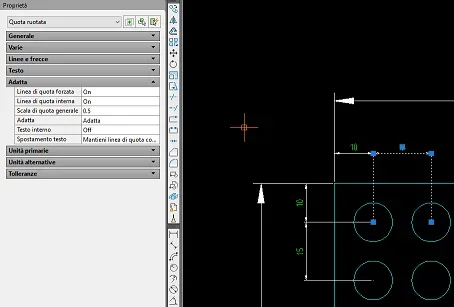
If they select the quota and click on property I don't find fit anywhere.
Where do I look? ?
 

Attachments

  • massi von.webp
    massi von.webp
    79.6 KB · Views: 6
between the bar with written ownership and the properties cells there is a scroll bar, drag it down
or move the mouse wheel
or click on the arrows to the right of property headings (general, various, text...) to close them and view the next ones
 
Hello Massive
Sorry to insist.
I know that the value quotas 500 and 200 are in a great character.
Values 10 and 15 have a small character.
But if I go to select them, I know that both have a 3.5-size character, but visually it is obvious that one is bigger and the other smaller.

Can you explain how you did it?
Thank you.
 
but did you look at all the properties of the quotas?
Did you come down with the scroll bar as I wrote?
if you will see that two in the general scale item, in the appropriate tab, has a value of 2, while the others of 0.5Immagine.webp
 
Thank you.
I didn't realize that the list continued even after "text" and so I went looking for fit in the wrong menu
 

Forum statistics

Threads
44,997
Messages
339,767
Members
4
Latest member
ibt

Members online

No members online now.
ciao
Back
Top