• This forum is the machine-generated translation of www.cad3d.it/forum1 - the Italian design community. Several terms are not translated correctly.

aspects in photoview 360 in the 2011 version

  • Thread starter Thread starter Ivan1990
  • Start date Start date

Ivan1990

Guest
I created a folder with all the colors according to the ral category and here everything well, then I wanted paint effect sprayed of these paints, then I took as appearance paint sprayed red, and here a problem came out I saved all the colors that I needed, and the colors makes them right, but in the preview of the image leaves me the ball with red color, I wanted to know if there was a way to get the real color from me put and before even in the
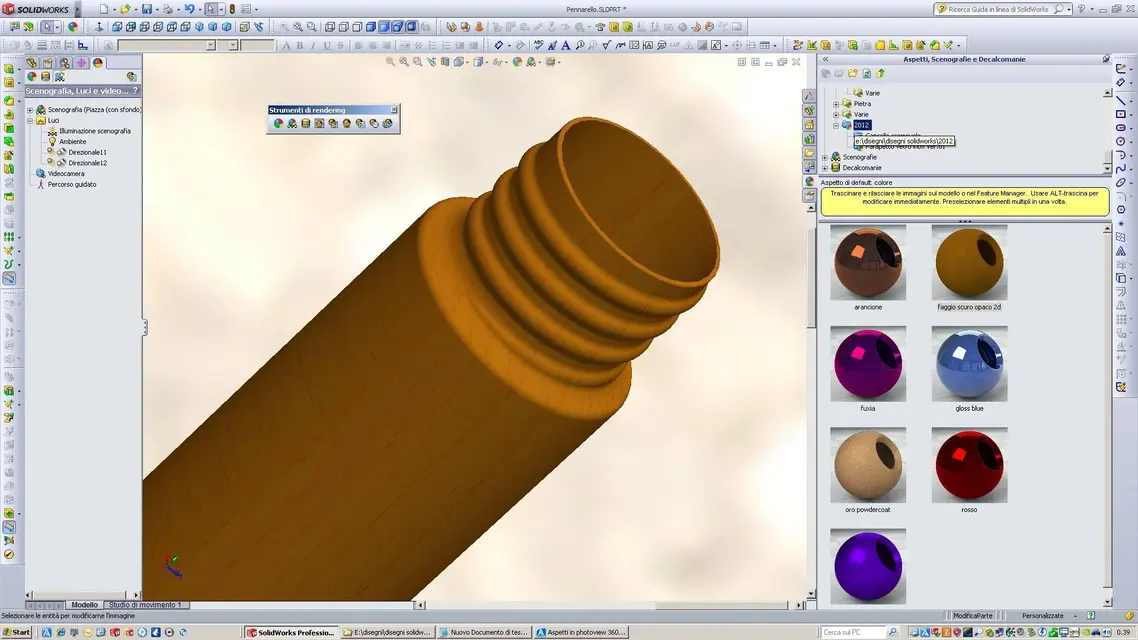
 
Once you set the appearance red sprayed paint, make the change of the background color, save the appearance with sprayed paint name ral 5015, for example, in the preview of the ball in the task bread you always see it red?
I don't... but I use 2012.
feel other users using 2011, maybe updating you to the last sp.
 
I made a reminder. .

how to save customized aspects:

1-apply the look you want.
2-feature manager, change on appearance just applied.
3-choose new color, even the secondary, usually lighter.
4-confirm with ok to apply the new color.
5-open as point 2 and save the new look in a folder to suit.
6-wired to the folder where we saved the file, we should be able to see the ball with the color we applied to it.
 
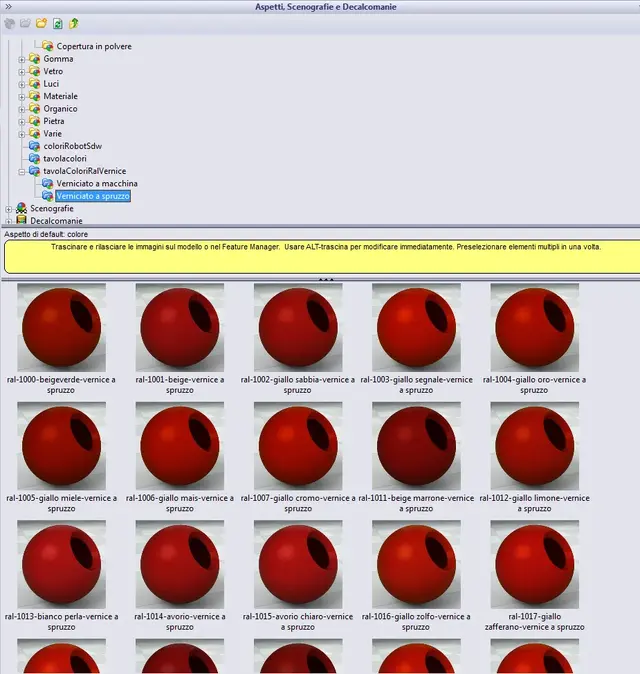
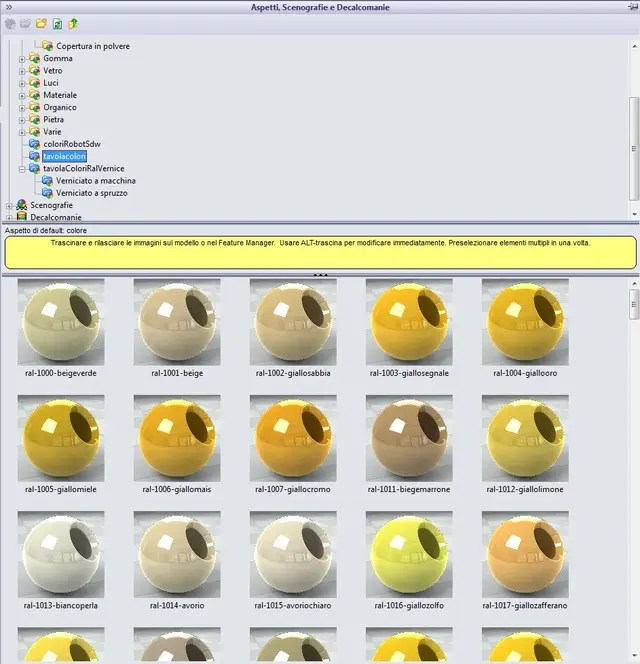
I put 2 images to be clearer, in the second aspect in the spheres makes me see them, under changing the spray red paint, I see all the red spheres.
 

Attachments

  • Immagine1.webp
    Immagine1.webp
    85.5 KB · Views: 19
  • Immagine2.webp
    Immagine2.webp
    85.1 KB · Views: 18
I put 2 images to be clearer, in the second aspect in the spheres makes me see them, under changing the spray red paint, I see all the red spheres.
You did a great job.
I remember entering a request to share the aspects with ral and pantone colors.
It bothers you to attach your folders on this subject in the form of zip.
In the meantime we verify them, because both to me and to mike works and then they are comfortable to many.
 
Bye-bye.
also to me as to ivan the aspects of sprayed paint always remain red in the bread task, while the color palette shows the ball with the color relative to the reference heral.
I use 2011 sp 5.0
 
Bye-bye.
also to me as to ivan the aspects of sprayed paint always remain red in the bread task, while the color palette shows the ball with the color relative to the reference heral.
I use 2011 sp 5.0
I have personally tested the procedure I posted, try to follow that method and post the result.
 
ok mike
done everything according to your procedure.
If I do it starting with the appearance "spray paint" the ball always remains red.
If I do it starting with the look "polished steel-metals" the spherre looks due to the modified color.
I also tried with sw 2012 same thing.
seems to be linked to the appearance of paint spray.
 
I confirm that I have tested other basic aspects and all work, but spray paint no
 
ok mike
done everything according to your procedure.
If I do it starting with the appearance "spray paint" the ball always remains red.
If I do it starting with the look "polished steel-metals" the spherre looks due to the modified color.
I also tried with sw 2012 same thing.
seems to be linked to the appearance of paint spray.
tell me you tried to change the color from the black sphere.. .
I just tried and on xp swx 2011 sp 4 works.
in swx 2012 also works with the red ball.
 
Hi.
I tried with the red ball, in both versions of sw, the black one I try tomorrow.
I use seven
 
I already did as you wrote... I also use seven and I have solidworks 2011 sp 5 (but I had made them in xp) I tried with black but the problem was equal, with the other aspects only with white does not do it, only because it does not affect the color chosen after.
 
I also tried on xp but the problem remains
works with all aspects except with spray paint, only case in which it works is if I start from black ball and create fuxia appearance.
 
Actually, it doesn't work with anything... because it holds basic original appearance, and puts on the new color... See what I mean if you look like white... It's a trick! !
 
you are actually actually changing the color of appearance, the concept is that if you do the preview of one you should do it all
 
Yes but the concept is that if basic appearance is white... it doesn't affect the blue you put after then preview it will be blue, if you take a blue look and you make it yellow, before it will be towards a greenish... If you always take this blue and make it white, it will become a lighter blue in the preview, I don't know if I was clear.
 
very clear, it is only necessary to take as the basis your palette of colors and change its parameters of light transparency etc. by copying them from the type of aspect that interests you most.
 

Forum statistics

Threads
44,997
Messages
339,767
Members
4
Latest member
ibt

Members online

No members online now.
Back
Top