anny1972
Guest
help
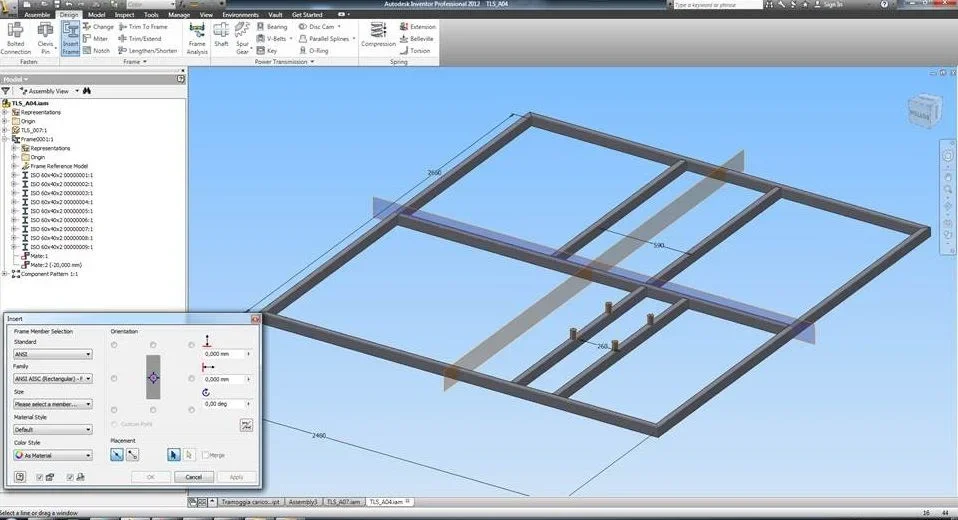
I would like a small guide on how to use inventor to create structures (e.g. canvases in hea or tubular) starting from the guidelines of a sketch.
I have clear the concepts , I have seen the module relative to the structures = I miss the starting input or how to start.
I just need simple points with written command and two lines of their function (very synthetic) and if possible a simple example file.
I gave an eye to autodesk tutorials but don't understand much about what needs to be created or set to start and especially what environment to use between : part or iam
if possible the example file and the guide created for the inventor version 2011 (current version I am using)
thank you from now on in the meantime I seek among the old discussions some useful imput that can dissipate my doubts and clarify my ideas
I would like a small guide on how to use inventor to create structures (e.g. canvases in hea or tubular) starting from the guidelines of a sketch.
I have clear the concepts , I have seen the module relative to the structures = I miss the starting input or how to start.
I just need simple points with written command and two lines of their function (very synthetic) and if possible a simple example file.
I gave an eye to autodesk tutorials but don't understand much about what needs to be created or set to start and especially what environment to use between : part or iam
if possible the example file and the guide created for the inventor version 2011 (current version I am using)
thank you from now on in the meantime I seek among the old discussions some useful imput that can dissipate my doubts and clarify my ideas