• This forum is the machine-generated translation of www.cad3d.it/forum1 - the Italian design community. Several terms are not translated correctly.

creation of cartilages

  • Thread starter Thread starter axia94
  • Start date Start date

axia94

Guest
Good day to all, here I am telling you a problem that will happen to many:
I have changed company, very intelligently opted for the use of solidworks 2010 (from me advised since I am faithful to solid for three years), first worked in autocad and welcomed solid with enthusiasm, but now I have a small problem ( cursed memory that betrays me).
I have ready autocad cards and to fill in a4v-a4o-a3o-a2-a1-a0 format in two custom versions (my company works for two agencies and everyone wants its cart). the auto compilation fields related to the part are the usual: n° design-description-data-etc.etc..

I don't remember anything anymore! (if I could stick the correct carts I have and fill them with the required data would be the maximum...), if someone pity my memory (I created carts for two companies and for my no longer remember some salient steps!) and indicated step to step how to make......... .

thanks to all for patience:confused::confused::confused:
 
Forgive me, but I don't know if you want to start from the acad file or the sw model.
 
good morning and thank you for the answer/question:
I would avoid redesigning everything from "sheet format change", inserting in the blank field (default model that gives you automatic solid from lang) with a simple ctrl+v the cartigli from autocad already' ready to be redirected to the characteristics of solid parts and/or assembly.
I hope to have been clear, otherwise I am here connected and available
I would start from the 10 autocad cards, or on one side.sldprt.dot from which (when given the properties) create an assembly and a drw (or at least this is what I remember from the distant course... )
thanks 1000:cool:
 
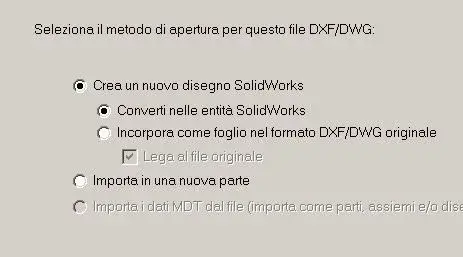
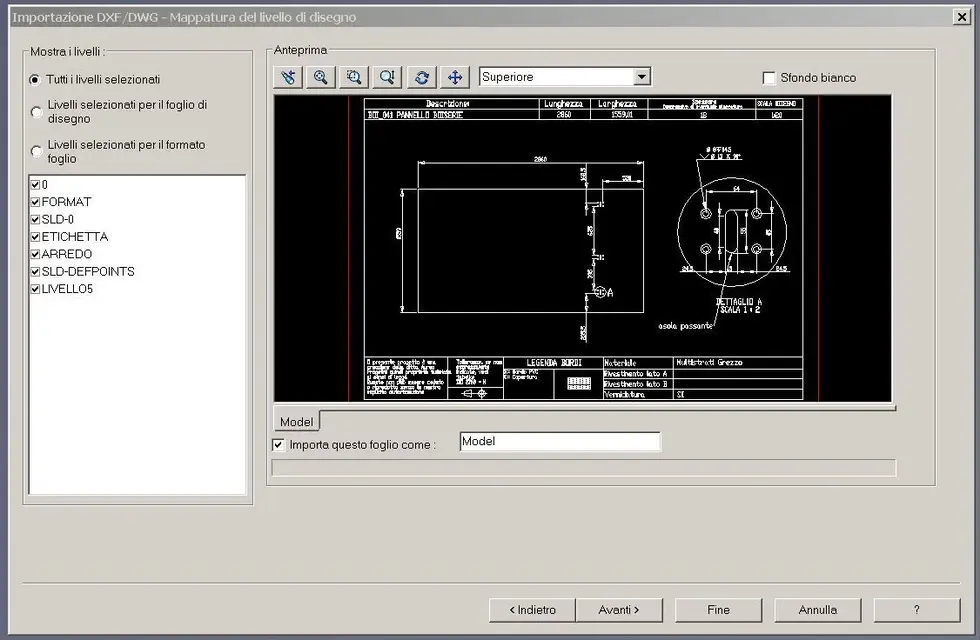
I would open dxf or dwg files directly.
open_file and amounts as attached drawings.
then go to the fields that interest you and change the existing text with the appropriate sw string (e.g.: scales:$prp:"sw-sheet scales" for the scale).
 

Attachments

  • Cattura.webp
    Cattura.webp
    14.1 KB · Views: 85
  • Cattura1.webp
    Cattura1.webp
    46.4 KB · Views: 54
  • Cattura2.webp
    Cattura2.webp
    52.6 KB · Views: 49
Perfect! perhaps we have come to the point of not returning my memory:
1 - the strings????? Where do I find them? ?
2 - Do all the files, how do I insert them into the solid works system? I explain, I have a creo design and solid part gives me a choice of cartilages, I at this point must have only two folders (my customers ) each happy 5 formats, I choose the format, I draw projections of the part and must fill the fields (where there was the note inserted) automatically.what now does not happen.

I look forward to your news and thank you

thanks 1000 geppetto
 
if you need to know something in + let me know

you can connect the value of a document property, a custom property or a specific configuration property to the text of a note. you can also connect a striped property of a table or distinct materials. if the value of the property changes, the connected text automatically updates.

to connect text to a property:

click Connect to the property in the note formatting toolbar.

select the location from which to connect:

Current document

model in the view to which the annotation is attached (only drawings)

model in view specified in sheet properties (only drawings)

component to which the annotation is attached (collective documents and drawing documents with parts and assemblies)

select a property from the list of properties available, which depends on the selection made at point 2 and where you create the note.

part or group document. list includes model properties and any user-defined properties.

drawing sheet or sheet format. the list includes the properties of the drawing document, including any properties defined by the user.

design view. the list includes the properties of the model shown in the view. if a view is selected when you insert a note, or if the note is attached to the model in a view, the note belongs to the view.

note: all documents have the properties defined by the system. drawings contain properties defined by the system that can be used to customize a sheet format. for more information on the document properties in the notes, see linking notes to the document properties.

to add a new custom property or to change an existing one, click file properties, then change properties in summary tabs - customization and configuration specifications.

select the custom or user-defined property in the list and click OK.

the connected text is the value assigned to the connected property.

prefixes for custom properties linked to notes are used as follows:

prefixed
rated by:

$prp:
Current document

$prpsheet:
model in the view specified in sheet ownership.

if the model specified in sheet ownership for custom properties is default, for notes belonging to the drawing views, the model will be used in the design view to which the note belongs.

for sheet and sheet size notes, the first view in the featuremanager drawing tree will be used.

if a view is selected, the pattern for such view will be used in all cases.

$prpview:
the model in the design view to which the note belongs

$prpmodel:
the component to which the annotation is attached


the connections to the quotas are evaluated by the active document.

if the appropriate document for custom properties cannot be identified according to the above designations, the following rules will apply:

in sheet editing mode, all notes of sheet sizes are blank. all notes of the drawing and sheet view will display the property names.

in sheet format editing mode, all sheet size notes show property names.

Note: When a note in a drawing is linked to a custom property or a quota and then the property or quota is subsequently erased, the note will display error!<nome variabile="">. the parametric text is kept and you can double-click the note to view the text. as soon as the property or share becomes available, the note will be updated compared to the current value. other elements in the note will not be conditioned.

you can choose to view or not link errors. select or uncheck display, show annotation link errors.</nome>
 
for the moment I thank you very much, tomorrow I put myself to work following your indications, if anything, "I will break your boxes again."
you were a great
thanks again and good day
Faithful:finger:
 
not that I despise helping someone, but one of the beautiful things that has sw that probably misses others is the guide. There's everything or at least 95%.
only a criticism I feel I do and it is related to the part that concerns the bees (all in English). I asked for assistance if an Italian version was available but unfortunately the answer was negative. I'm still looking for something about it. .
However, don't worry, he didn't want to be critical but only a recommendation to be independent as much as possible in the use of the software.
available. ..:finger:
 
if you open a preset sw model,
button dx change sheet size
click dx on one of the fields and select edit the text in the window.
you will see how some properties are recalled, a pinch of intuition and the game is made.. .
 

Forum statistics

Threads
44,997
Messages
339,767
Members
4
Latest member
ibt

Members online

No members online now.
Back
Top