• This forum is the machine-generated translation of www.cad3d.it/forum1 - the Italian design community. Several terms are not translated correctly.

rendering and photomontage

  • Thread starter Thread starter snupiello
  • Start date Start date

snupiello

Guest
often happens to have to insert a 3d model in a photo of a pre-existing urban context.
It is necessary that it coincides the position of the observer in the virtual space with that in the real space (room that generates perspective view and camera that took the photo), that coincides the amplitude of the virtual focal point with the real one etc.
with 3dstudio I got perfect results
with revit I don't know where to start
give me some indication
 
I also care about this thing, but with the search button I found nothing... Where can I find this old discussion?
 
with the 2011 version, the background can be inserted directly:
go to a plant view
command: view 3d>cinepresa
set height, level; detreminates the positioning distance of the camera/cineta from the building (equal to that of the "photo in field") and with the mouse tracks the "direction of recovery"
go to the 3d view created
from the property picture:
- in the camera field, select: change
- from the " rendering settings" mask, in the "background" field select > style: image image image
launches the command "exegui rendering, and from the mask selects: customize image, then:
- with the command : image, import the background image
with the other selectors, size and place the image, keeping in mind that the contour (perimeter) of the imported image corresponds to the trim boundary
launches rendering and...
 
Hi.
I tried in revit 2010 to insert a background image before launching the rendering, but there is no command. It's a novelty only from revit 2011, isn't it? :redface:
 
Yes.
for 2010 you have to export the rendering in png format that "draws the background" and then prodedere with an assembly of the two images (render and background image).
in the discussions listed above is indicated the procedure in detail ...
 
fulvio asked me if there are decent plants
for revit
because the rpcs are not a great thing and the trees in dwg weigh
and often fail to turn into dwg from max format because they far exceed the polygons that autocad supports
I managed to tear it apart and gather them but then import them into revit is
another problem
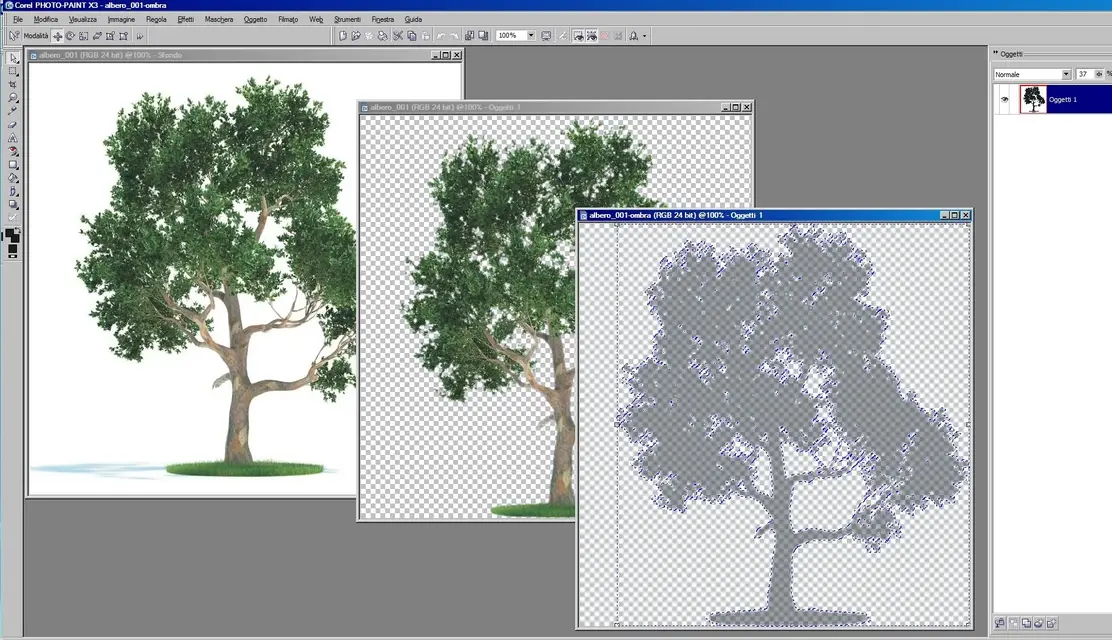
I insert them later into the image rendered with chorel photopaint
the tree_001 was taken by www.evermotion.orgI turned it into tree-001.cpt (shape of chorel photopaint, isolated from the background) and I also created a tree_001-shade.cpt in transparent grey that suitably rotated and ironed is used as a shadow on the ground or against a wall
the three steps in tree_001_corelphp
 

Attachments

friends,
I created with "rpc creator" a file, "cat brick.rpc", because I wanted to put it in the scene.
the problem is that the file created, that is the cat, is blessed them on the desktop and I don't know how to load it in revit 2010.
Give me a hand? If not the cat escapes....:smile::finger:
 

Attachments

Hello, everyone.
Finally yesterday came the 2011 version in studio and as a child on Christmas day I have already put myself to try, study and play with the new possibilities.
but we come to the real question.. .
I tried to insert an image as a backdrop to the rendering and I managed...but my project does not overlap in an acceptable way with the background image (the project set up in a building with the roofing plan totally modified)... is there a way to make visible the background image in the model, before performing the rendering, to try to set/seat/route the 3d to have an acceptable result?
I remember that with 3ds max you could set points in order to adjust the virtual camera to make it as similar to the one that took the image. .
gfrank, I also tried in the discussions you listed earlier but found nothing.

thanks in advance for the help!
 
Unfortunately there is not this function in revit... but there is a tips and tricks
quite simple that should give you the desired result.
the steps are as follows:
1. open a table to engage;
2. insert the image you want to appear behind the view you want to render on the table;
3. insert the view you want to render on the image you have inserted on the table;
4. activate the view to make and with the rotation and change keys, turn the model as you want, so as to overlap it in the right position on the image.
5. After changing the position, disable the view changes and return to the view window to render and proceed to render it.
I hope I've been clear.
 

Forum statistics

Threads
44,997
Messages
339,767
Members
4
Latest member
ibt

Members online

No members online now.
Back
Top