Join the forum for Designers!
Your expertise is vital to the community. Join us and contribute your knowledge!
Join the Forum NowShare, learn and grow with the best professionals in the industry.
Overcoming K-Factor Limitations: Leveraging Bend Calculation Tables in SOLIDWORKS
When working with sheet metal in SOLIDWORKS, the precise calculation of flat patterns is critical. For many engineers, the K-factor is the default approach, but it can introduce variables that complicate the process, especially when dealing with formed plastic parts or when a specific, constant compensation value is desired. A recent discussion among professionals on the Italian engineering forum “cad3d.it” has highlighted a more robust native tool: the Bend Calculation Table.
Unlike the standard bend table, which demands an exact match between the 3D model’s bend radius and a corresponding entry in an Excel sheet, the Bend Calculation Table offers far greater flexibility. The core advantage, as emphasized by forum members, is its ability to accept angular ranges rather than requiring precise, discrete angle values. This allows the user to input a fixed compensation constant, effectively bypassing the influence of the K-factor and the bend radius on the final flat pattern.
The Core Formula
The engine behind this method is straightforward. The total flat length is calculated as:
Flat Length = Flange A + Flange B + Compensation Value
This simple additive model grants engineers direct control over the final developed length, making it ideal for scenarios where a known, empirical compensation is preferred over a theoretically derived K-factor.
Implementing the Bend Calculation Table: A Step-by-Step Guide
The discussion on cad3d.it provides a clear, practical workflow for setting up this table. Here is how to replicate it, using a 5 mm thick material as a working example.
1. Locating the Template File
The master file for this function is not a standard bend table. It is a dedicated Excel template located within the SOLIDWORKS installation directory. The typical path for an Italian-language installation is:
C:\Program Files\SOLIDWORKS Corp\SOLIDWORKS\lang\italian\Sheetmetal Bend Tables\
Within this folder, locate the file named “bend calculation base table.xls”. It is strongly advised to copy this file to a working location, such as your desktop, before making any modifications.
2. Structuring the Excel Table for a 5 mm Thickness
Since the objective is to ignore the actual bend radius, a dummy radius value (e.g., 2 mm) can be entered. The focus should be on the angular range rows. For a 5 mm thick part, the table should be configured with continuous angular ranges, ensuring no gaps between them:
| Thickness (s) | Radius (R) | Angle Range (β) | Compensation Value |
|---|---|---|---|
| 5 | 2 | 0° to 25° | 0 |
| 5 | 2 | 25° to 60° | 0.5 |
| 5 | 2 | 60° to 100° | 1 |
Critical syntax note: Users must preserve the original column headers from the SOLIDWORKS template. This typically includes the “beta” symbol (β) for the angle column and the “s” for the thickness column. Inconsistencies here will break the import process.
3. The “Use Tangent Length” Column
A key decision point in the table is the “Use Tangent Length” setting (or “Usare lunghezza tangente” in the Italian template). The forum discussion clarifies the behavior:
- Setting it to “NO”: The software measures flanges A and B to the external virtual sharp intersection point. For a part with two 100 mm external flanges and a compensation of 1 mm, SOLIDWORKS calculates 100 + 100 + 1 = 201 mm. This is the recommended setting for most applications where the external dimensions are the target.
- Setting it to “YES”: The software measures only the flat portion of the flange, excluding the curved bend area. This is suitable for specific cases where only the planar faces are relevant.
For the scenario described by the forum users—where the finished external flanges are exactly 100 mm—setting this value to “NO” is the correct approach.
4. Applying the Table to the 3D Model
Once the Excel file is customized and saved, the final step is to integrate it into the SOLIDWORKS model:
- Open the 3D part in SOLIDWORKS.
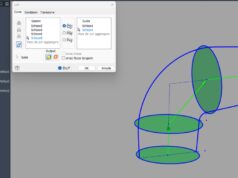
- In the FeatureManager design tree, right-click on the Sheet Metal feature (the first icon at the top of the sheet metal tree) and select Edit Feature.
- In the Bend Allowance section, change the drop-down menu from “K-Factor” to “Bend Calculation”.
- Click Browse, select your modified Excel file, and confirm with OK.
After this configuration, when the part is flattened, SOLIDWORKS will read the material thickness and bend angle from the model, look up the corresponding compensation value in the table, and apply it directly, completely bypassing the K-factor and the geometric bend radius. This method delivers a predictable, empirical flat pattern tailored to the specific behavior of a given material and tooling setup.
The cad3d.it forum provides a valuable resource for Italian-speaking engineers dealing with such practical sheet metal challenges. For those wishing to delve deeper into the nuances of this method, including alternative scenarios and troubleshooting, the full discussion is available online.
To explore all the technical details, read the full responses, and actively participate in the debate, we invite you to visit the original discussion on the cad3d.it forum (in Italian).
Join the forum for Designers!
Your expertise is vital to the community. Join us and contribute your knowledge!
Join the Forum NowShare, learn and grow with the best professionals in the industry.